> For the complete documentation index, see [llms.txt](https://wiki.mmorealms.gg/llms.txt). Markdown versions of documentation pages are available by appending `.md` to page URLs; this page is available as [Markdown](https://wiki.mmorealms.gg/cobblemon-wiki/technical-guide/complete-overview-of-support-tickets/a-complete-guide-to-supporting-evidence.md).
# A Complete Guide to Supporting Evidence
This guide covers everything you need to know about gathering supporting evidence to assist in tickets, whether that be for reports about bugs, another players actions, or anything in between.
**Contents**
1. [The Purpose of Evidence](#the-purpose-of-evidence)
2. [What Type of Evidence is Needed?](#what-type-of-evidence-is-needed)
3. [How do I gather Evidence?](#how-do-i-gather-evidence)
1. [Logs](#logs)
2. [Screenshots](#screenshots)
3. [Video Recording](#video-recording)
***
### The Purpose of Evidence
Some may wonder why evidence is needed in the first place. To be clear, some types of support tickets will require evidence to be able to be handled by staff, to ensure accuracy in the details provided by the reporter, and to assist staff in reproducing the issue if needed to try and correct it. Some reasons include:
* Player Reports - To be able to issue punishment against any player, staff need clear evidence showing the players actions that broke the rules. This prevents malicious use of staff perms, and ensuring all players are treated fairly.
* Bug Reports - Whilst steps to reproduce may be provided, they are not guaranteed to be sufficient for staff to run into the same bug. Providing evidence of the bug itself shows clearly an issue is present, and may lead to a better understanding on how to reproduce it.
* Missing Items - Similar to reporting a bug, having concrete evidence of items going missing is a clear way to show staff that you are missing out on something as a result of a server fault, and will help in getting the right items returned to you.
### What Type of Evidence is Needed?
When it comes to defining what evidence is relevant, one should consider what they are reporting. Simply the evidence should demonstrate or show what the player would like to report. If they are reporting a player, they must show the players actions that violate server rules. If they are reporting a bug, they must show the bug itself and it's steps / outcome. If they are reporting missing items, they must show what items went missing and how.
As a result, there is no singular clear format that covers everything, as what is needed will vary by situation. However, what is recommended is to focus on video evidence, as this is more likely to pick up relevant details to show staff.
Are Staff able to gather Evidence?
In some cases, yes. Staff have access to additional logging server-side that allow them to review finer details of specific actions between players. However, this does not mean they will always have proof. This is why we strongly urge players to gather their own proof in all cases, even if they think staff might have enough.
{% hint style="info" %}
Evidence supplied must be relevant to the situation you are reporting. This means it should either clearly show the exact issue and how it happened, or even something recent to just before the issue happened (note this may not be sufficient for **all** problems being reported).\
\
The time for which evidence is considered "recent" varies drastically based on the specific issue, but something around 2 weeks or newer is a good time to aim for.
{% endhint %}
### How do I gather Evidence?
Luckily, there are many ways for players to gather evidence of their own without the need for specalist paid software, in-fact, some even come preinstalled into all major operating systems.
#### Logs
Logs are a set of files created by Minecraft during play that record everything happening within your in-game chat. As a result, they are very handy in reviewing what had happened earlier, and to show anything either another player had said, or feedback from the server resulting from certain actions, such as AH sales.
There is a guide covering logs in great detail available [here](/cobblemon-wiki/technical-guide/a-complete-guide-to-logs.md).
Ex of Logs Folder with Dated Logs
#### Screenshots
All major operating systems come with screenshot capabilities baked into the operating system. There are a few ways to gather them.
Print Screen
Many keyboards come with a key labelled "Prnt Scr", standing for print screen. Pressing this will take a screenshot of everything currently visible on your screen, which can then be pasted into other apps through use of `Ctrl` + `V`
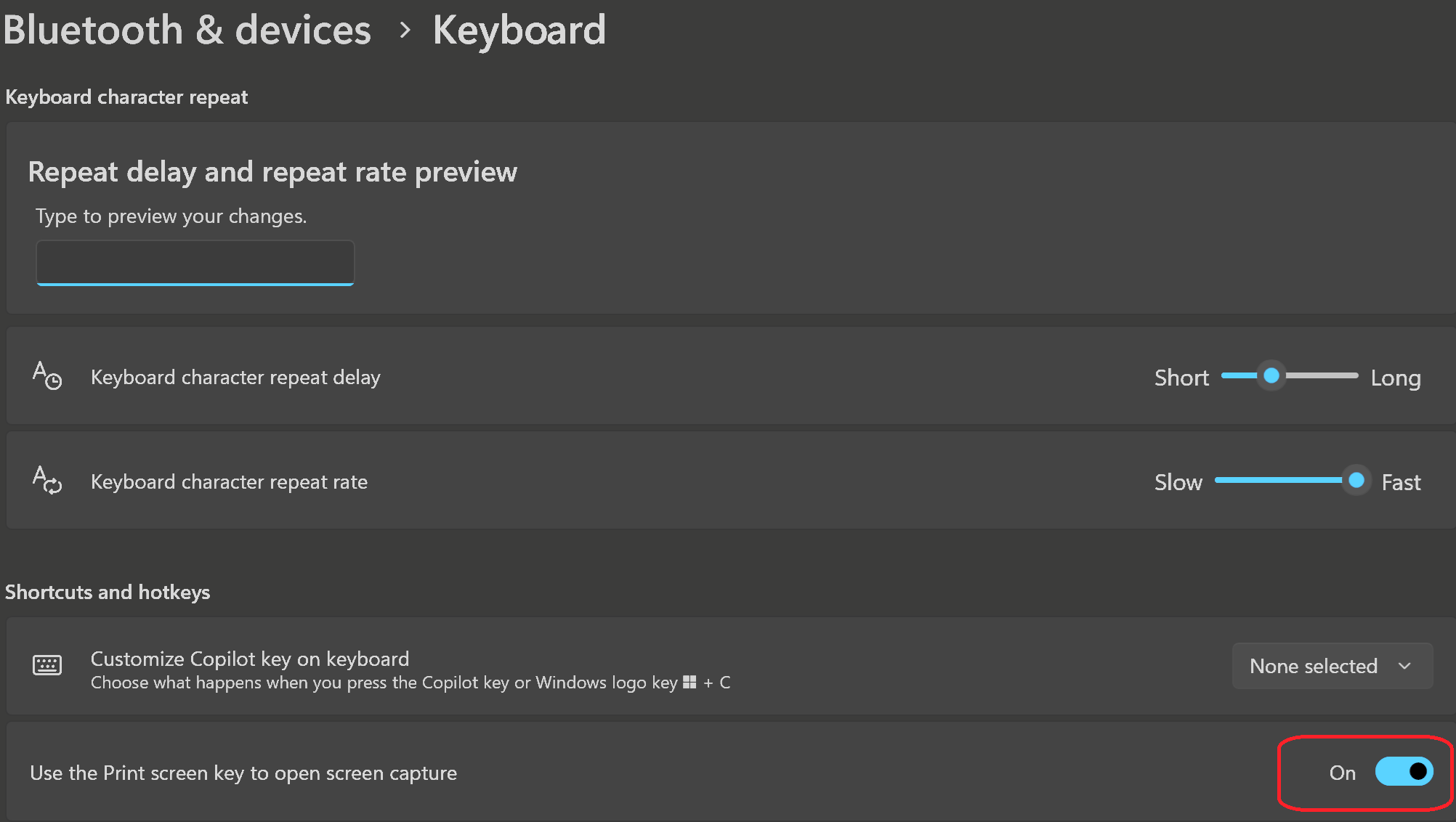
On certain operating systems, the key can be reassigned to run Snipping Tool instead.
Windows 11 settings for Print Screen reassignment
Snipping Tool
Snipping tool is an app that comes preinstalled on Windows devices, allowing for more customisability in what is included within a screenshot, and how to export it.
Snipping Tool App
Upon opening the app, select "New" and drag your cursor across the screen, covering everything you would like to be included. Afterwards, the image of what you had snipped will appear in the window, and can be annotated, copied, or saved as a file.
Snipping Tool App with Image
Alternatively, there is a keybind which allows for snipping tool to be run without opening the app, and automatically copies any snipped image to your devices clipboard, allowing it to be pasted elsewhere. This keybind is `Windows` + `Shift` + `S`
Third Party Apps
Third party apps offering similar functionality exist, however are generally not recommended unless they offer a unique feature you plan on using, since the two methods mentioned above are generally sufficient for all cases of image evidence.
#### Video Recording
Video recording is generally recommended to players by staff for all situations. It gathers much more detail than other options, and can always be trimmed down, or even screenshot later if the whole recording is not needed.
Specifically, certain software allow the user 'clip past gameplay'. This means that with the software running, as soon as an issue occurs the user can press a preset keybind to save everything recorded within the past 60 seconds (or whatever buffer time is set). This ensures players only save relevant video, without filling up an otherwise limited storage. This functionality comes in a few different pieces of software, however popular free options include:
OBS
Open Broadcaster Software is widely known for use in hosting streams, however also supports the ability to record locally, and with the playback option. It can be downloaded from their website,
Once setup, use the follow steps to create a profile for playback recording.
1. At the bottom of the screen, select `+` within the sources tab.
2. Select either `Display Capture` if you would like to record all windows open on a specific monitor, or `Window Capture` if you would like to only record one window, such as Minecraft or Discord.
3. Grant the capture a name (this has no relevance on the output, just how it shows up within OBS).
4. Select either the Display or Window you would like to capture. Capture method should be kept on automatic unless you are facing difficulties in viewing an output. If available, enable `Capture Audio` as this ensures audio is saved within the recording without the need of setting up another capture.
5. Head to `File` -> `Settings` -> `Output`, and scroll down until you see `Replay Buffer`. Here you can set how long back you want the recording to save, note that increasing the time length, or resolution of the video will require additional memory to remain stable. Unfortunately we cannot recommend a balance that suits everyone, so it's worthwhile to experiment here to find what works for your system.
6. Finally, you are able to record using the playback feature. At the home page of OBS, under the controls submenu there will be an option to `Start Replay Buffer`. Once running, the download symbol can be used to save any recent gameplay to your device.
Medal
Medal is very similar in functionality, with greater focus on the playback system to allow for quick clipping with use of a keybind. It can be downloaded from their website,
Once setup, use the follow steps to create a profile for playback recording.
1. Upon launch, Medal will begin to search for a suitable game to begin recording. If no game is found, or the user would prefer to record everything, they can select `Desktop Capture` instead.
2. Within the clip settings, the user can set a keybind so save recent clips, as well as how long the replay buffer should last.
3. The quality may be adjusted to define how clear the output should be, along with audio settings to ensure relevant sounds are picked up.
---
# Agent Instructions
This documentation is published with GitBook. GitBook is the documentation platform designed so that both humans and AI agents can read, navigate, and reason over technical content effectively. Learn more at gitbook.com.
## Querying This Documentation
If you need additional information that is not directly available in this page, you can query the documentation dynamically by asking a question.
Perform an HTTP GET request on the current page URL with the `ask` query parameter, and the optional `goal` query parameter:
```
GET https://wiki.mmorealms.gg/cobblemon-wiki/technical-guide/complete-overview-of-support-tickets/a-complete-guide-to-supporting-evidence.md?ask=&goal=
```
`ask` is the immediate question: it should be specific, self-contained, and written in natural language.
`goal` is optional and describes the broader end goal you are ultimately trying to accomplish on behalf of the user. GitBook uses it to tailor the answer towards what is most useful for that goal.
The response will contain a direct answer to the question and relevant excerpts and sources from the documentation.
Use this mechanism when the answer is not explicitly present in the current page, you need clarification or additional context, or you want to retrieve related documentation sections.