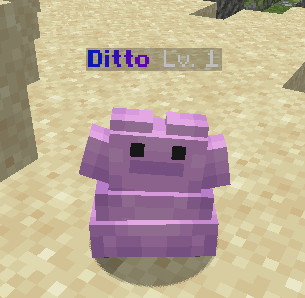
# Nickname & Colour Help

In order to gain access to setting a nickname on the server, you will need to **have at least the Expert rank** on the server. If you are only Trainer rank then you will not have access to this command.

**Contents:**

1. [How do I set my Nickname?](#how-do-i-set-my-nickname)
2. [How do I add colour to my name?](#how-do-i-add-colour-to-my-name)
3. [Adding Multiple Colours to Nickname](#adding-multiple-colours-to-nickname)
4. [Gradient Colours in Nickname](#gradient-colours-in-nickname)
5. [Pokecolor Command](#pokecolor-command)

***

### How do I set my Nickname?

Setting up your nickname is incredibly easy to do! All you need to do is run the command:

* `/nick` **`NAME`**     &#x20;

<div align="left"><figure><img src="/files/sXFOMOIyLRTsPmzioTZl" alt=""><figcaption><p>Example of setting your Nickname</p></figcaption></figure></div>

Now anytime you speak on the server your name will show up as the nickname you have set.

### How do I add colour to my name?

Adding colour into your nickname on the server is also very easy to do. There is two different ways to give your name colour on your nickname with the first option being easy to use but limited with variations of colours with the latter way being a bit more complex but you'll be able to choose any specific colour you wish.

#### Option 1.   Standard Colour Tags

Using any of the colours listed below you can easily add colour to your nickname as simple as:

**EXAMPLES:**

* &#x20;**`/nick <yellow>Butter`**
* **`/nick <dark_purple>Phantom`**

<div align="left"><figure><img src="/files/8Xk4LsJzucXvf278zGeQ" alt=""><figcaption><p>Example of Standard Colour Tag within your Nickname</p></figcaption></figure></div>

You'll be able to use any of the standard colour tags listed here:

<details>

<summary>Standard Colour Tags</summary>

* black
* dark\_blue
* dark\_green
* dark\_aqua
* dark\_red
* dark\_purple
* gold
* gray
* dark\_gray
* blue
* green
* aqua
* red
* light\_purple
* yellow
* white

</details>

#### Option 2.   Hex Colour Tags

The other option is by using hex colour tags you can obtain from various methods. We recommend using the website below to find the exact colour you wish to use for your nickname:

{% embed url="<https://redketchup.io/color-picker>" %}

If you have found a colour that you're happy with you will want to copy the colour hex code which should look similar to this: `#E97804` With this colour code, you can input it in the same format as you was doing with the standard colour codes like this:

**EXAMPLE:**

* **`/nick <#E97804>Butter`**
* **`/nick <#603593>Phantom`**

<div align="left"><figure><img src="/files/BI0rbtET5AHNDa794nvq" alt=""><figcaption><p>Example of Hex Colour Tag within your Nickname</p></figcaption></figure></div>

### Adding Multiple Colours to Nickname

Now that you know how to add colours into your nickname, you can start adding multiple colours into your nickname. Depending on what letters you want to be coloured you'll be slotting the colour tag in-between your name for each corresponding colour. You can combine both standard and hex colour tags for this if this helps you as will be shown in the example shown below:

**EXAMPLES:**

* **`/nick <#E97804>But<yellow>ter`**
* **`/nick <dark_blue>Phan<dark_purple>tom`**

<div align="left"><figure><img src="/files/uxtMGDGp3aPmr7yTfq0S" alt=""><figcaption><p>Example of Multiple Colours within Nickname</p></figcaption></figure></div>

You can customise this as much as you can whether this be by highlighting certain words within your nickname, or even creating a rainbow effect with your nickname. Let your imagination go wild with it!

### Gradient Colours in Nickname

To add more customisation within your name, you can add gradients within your nickname which acts as a bridge of two or more colours from one end to another. You can use multiple gradients if you wish to have multiple different colours blending in together. You will be using the colour codes generated from the Hex generator for this.

**EXAMPLES:**

* **`/nick <gradient:#f5f105:#d1b00a:#f29202:#d1b00a:#f5f105>Butter</gradient>`**
* **`/nick <gradient:#111df7:#8102f7>Phantom</gradient>`**

<figure><img src="/files/ZUE5JKkdfVvlUAEmXnb1" alt=""><figcaption><p>Example of Gradients within Nickname</p></figcaption></figure>

It is important to ensure that you close these gradients properly. While the name may appear correctly even if the command is not ended with `</gradient>`, any text sent afterwards can still be affected by the gradient, despite the general text being set to white. As a result, the gradient on your nickname may appear stretched and not follow the colour scheme you originally set. This effect can be seen in the image below compared to the image above.

<figure><img src="/files/85tsrbLk6YP3l6uCWfLA" alt=""><figcaption></figcaption></figure>

### Pokecolor Command

🌟<mark style="color:purple;">**This section is only relevant for players who have the Mythical Rank or higher on the server.**</mark> 🌟

In addition to your existing perks, you can customise your Pokémon’s name using the same formatting options available for your nickname including colour and bold styling for added flair.

To get started, **use** the **following command**:

* **`/pokecolor <slot of pokemon> <colour/bold> <name> <close colour/bold>`**

This feature also allows you to update the appearance of your entire party. Even better, your customised Pokecolours are permanently saved whether your Pokemon are stored in your PC or traded to another player.

Below are some examples demonstrating how to use the command:

**EXAMPLES:**

* `/pokecolor 1 <gradient:#FF0000:#FF7F00:#FFFF00>Bidoof</gradient>`&#x20;
* `/pokecolor 6 <b><gradient:#111df7:#8102f7>Ditto</gradient></b>`

<figure><img src="/files/cYJMlNilwQl8mNKHeduW" alt=""><figcaption><p>Ditto with a Bold and Gradient Name</p></figcaption></figure>


---

# Agent Instructions: Querying This Documentation

If you need additional information that is not directly available in this page, you can query the documentation dynamically by asking a question.

Perform an HTTP GET request on the current page URL with the `ask` query parameter:

```
GET https://wiki.mmorealms.gg/cobblemon-wiki/general-guides/nickname-and-colour-help.md?ask=<question>
```

The question should be specific, self-contained, and written in natural language.
The response will contain a direct answer to the question and relevant excerpts and sources from the documentation.

Use this mechanism when the answer is not explicitly present in the current page, you need clarification or additional context, or you want to retrieve related documentation sections.